

What if your smoothest PC build is the wrong place to judge console readiness? PC performance results don’t always predict how a game will behave on console hardware, where bottlenecks and constraints can differ. Optimizing a PC game for console performance takes more than lowering a few settings. You need a measured, platform-specific process to identify what is slowing the game down and confirm that each change works as intended.
Performance tuning involves trade-offs. The challenge is finding effective fixes without introducing gameplay, visual quality, or stability regressions, especially across different hardware targets. This guide sets out a repeatable workflow: define measurable goals, profile representative scenarios, prioritize bottlenecks, and validate changes on the intended console. It also covers how to organize testing as platform preparation begins. When optimization moves toward submissions and certification, console publishing experience can help developers navigate the next steps in the release process.
Key Takeaways
- Start with a baseline for the intended console. A PC benchmark cannot establish how the console build will perform.
- Profile representative gameplay, demanding scenes, and loading moments to distinguish CPU, GPU, memory, and storage bottlenecks.
- Compare potential changes by likely benefit, effort, and regression risk. Use profiling evidence to decide what to address first.
- Follow a repeatable build, test, compare, and document loop. Prioritize console testing and treat PC results as supporting evidence.
- As release preparation begins, review Ocean Media’s console game publishing information.
Why optimizing a PC game for console performance starts with a new baseline
A strong PC benchmark is useful, but it doesn’t prove that a game is ready for a console. PC players may use different processors, graphics cards, memory configurations, drivers, and settings. A console build, by contrast, needs to deliver the intended experience on a specific platform target. Measure that build during representative gameplay, then use the results to guide your changes.
Console performance optimization means measuring a game on a specific console target and adapting its code, content, and settings to meet platform performance goals while preserving the intended player experience. That involves more than lowering graphics settings. Reducing visual quality may help a GPU-bound scene, but it won’t necessarily resolve CPU-heavy gameplay or uneven frame pacing. The right adjustment depends on evidence from the target build.
What changes when a PC game moves to console hardware?
PC testing spans a range of configurations, so each result reflects both the game and the machine it ran on. Console testing focuses on the hardware and platform requirements of the intended build. Resolution, visual effects, asset detail, and the number of active characters or systems can all affect performance. The process of adapting software involves more than transferring a build. It also means accounting for the platform where the game must run.
Don’t assume that a setting or result from one device applies to another. Check the current platform documentation for the target’s specific requirements, then test the game on that target. This gives your team a relevant baseline instead of an estimate based on PC results.
Set measurable performance goals before changing the build
Before tuning, agree on what success means for the game and platform. Set priorities for target frame rate, visual quality, and stability in line with platform requirements and the experience you want players to have. These goals give developers and designers a shared reference when a potential performance fix involves a visual or gameplay trade-off.
Make each measurement reproducible. Record:
- Platform and build version: Identify the target and the exact build tested.
- Test scene and conditions: Note the location, gameplay activity, and relevant settings.
- Observed result: Record performance behavior, instability, and visible quality changes.
A clear baseline lets you compare later builds fairly and determine whether a change helped, had no effect, or introduced a regression. Keep publishing preparation in view as optimization approaches release. Learn about console game publishing and how publishing support can fit into the release process.
Profile the PC game to find CPU, GPU, memory, and frame-pacing bottlenecks
Before changing code or content, find out where frame time is going. A single average frame rate can hide short stalls, uneven pacing, or slowdowns that appear only during particular gameplay moments. Profiling should help identify the bottleneck before optimization begins, so the team can target the cause instead of guessing at a fix.
Build a repeatable profiling baseline
Choose a small set of repeatable tests: a typical gameplay sequence, a demanding scene with effects or many active entities, and a loading or asset-streaming sequence. Keep the build version, settings, scene, and test actions consistent between runs. Record frame-time behavior alongside average performance, and note when stutters or loading delays occur. This gives the team a fair before-and-after comparison as it works on optimizing a PC game for console performance.
Use the profiling tools available in your project, including built-in workflows in Unity or Unreal Engine where applicable. Capture CPU and GPU activity, memory use, and relevant loading events together when possible. The GDC Vault’s overview of performance analysis and optimization techniques offers additional context for a disciplined investigation.
Tell CPU, GPU, and memory constraints apart
Look for patterns, then confirm them in profiler data. A CPU-bound moment may coincide with heavy simulation, animation, or draw-call work. A GPU-bound moment may show graphics workload dominating as resolution or visual effects increase. Neither pattern points to one universal fix. Check the measured workload before deciding what to change.
Memory and storage also deserve attention. Rising memory use, allocation spikes, or frequent asset loading can accompany hitching or instability. If a pause coincides with an asset request, inspect the loading path and resource behavior rather than assuming rendering is responsible. Treat these signals as clues to investigate, not proof on their own.
- CPU: Compare time spent on gameplay systems, animation, and rendering submission.
- GPU: Inspect graphics workload and whether costly effects or scene complexity align with slow frames.
- Memory and storage: Track usage and asset-loading activity around spikes, stalls, or instability.
- Frame pacing: Review individual frame times to catch uneven delivery that an average can conceal.
Once you have repeatable evidence, you can prioritize fixes and prepare a clearer handoff as the release moves toward platform preparation. Review Ocean Media’s console game publishing support for information about the publishing process.
Compare optimization options before changing rendering, assets, or game systems
A profiler points you toward a bottleneck, but it doesn’t automatically tell you which fix is best. Compare potential changes by the evidence behind them, their expected benefit, the effort involved, and the risk of affecting visuals, gameplay, or stability. This keeps work on optimizing a PC game for console performance focused on measured needs rather than broad changes that may not address the cause.
Use the options below as conditional starting points, not universal solutions. The right intervention depends on what your profiling data shows in the affected scene.
| Intervention area | Consider it when | Trade-off to assess |
|---|---|---|
| Rendering settings or effects | Measurements point to GPU pressure | Visual quality may change. Validate in representative scenes. |
| Asset complexity | Detailed models, textures, or effects contribute to measured workload | Changes can affect fidelity, readability, or presentation. |
| Game systems | Profiling identifies CPU-heavy simulation or processing | Changes may affect gameplay behavior or timing. |
| Memory and asset loading | Evidence links memory pressure or loading activity to stalls | Resource changes may affect loading behavior or stability. |
When should you optimize rendering or visual assets?
Consider resolution, lighting, effects, and asset complexity when profiling shows GPU pressure. For example, if frame times worsen in a visually dense scene, test a focused adjustment to the elements contributing most to the workload. Review the result with the team: a faster scene may not be a better result if important visual cues or the intended look are lost. Check current platform documentation before applying platform-specific settings or thresholds. For further context, see Game Developer’s discussion of console game optimization best practices.
When should you optimize game systems or memory use?
If the profiler shows CPU costs in simulation or other game systems, investigate that work before reducing visual quality. If memory use or asset-loading activity aligns with hitching, examine those paths instead. Keep each change scoped and document what it targets. That makes it easier to spot regressions and retain improvements that matter.
After each meaningful change, rerun the same test and compare results against the baseline. Avoid stacking untested fixes: if performance or gameplay shifts, isolated changes make it easier to identify why. Review console game publishing information as your work moves toward platform preparation.
Validate console performance through a build, test, and regression loop
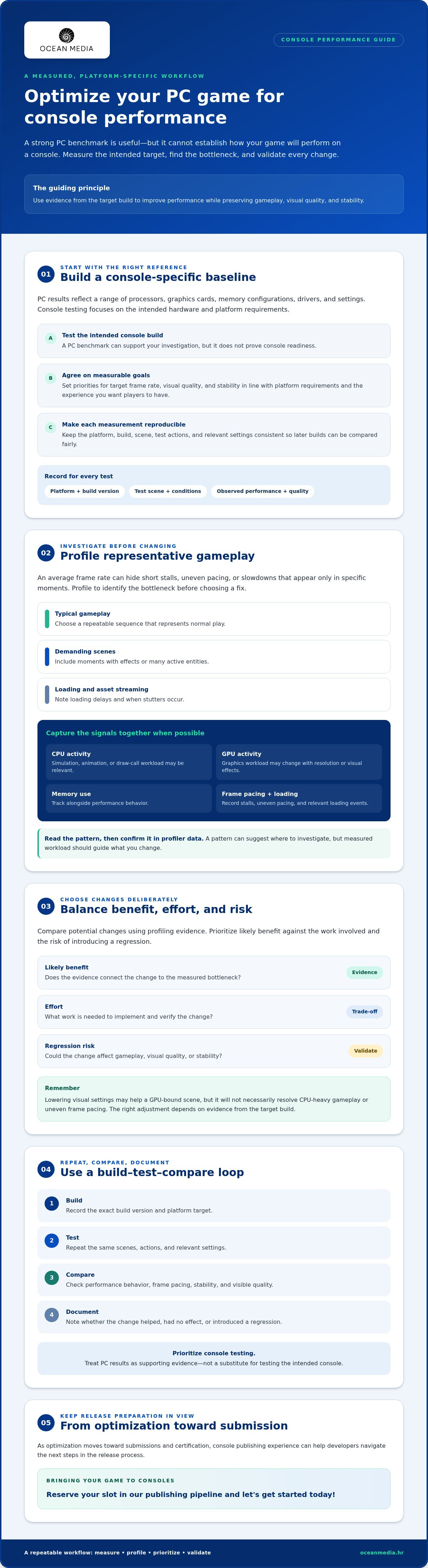
A promising result in one scene isn’t enough to confirm that an optimization is safe. Validate each meaningful change through a consistent cycle: establish the baseline, change one area, test the build, compare the results, and document what happened. When optimizing a PC game for console performance, prioritize testing on the intended console target. PC tests can help you investigate and compare builds, but they are supporting evidence, not a substitute for target-platform validation.
Run focused tests after each optimization
Repeat the scenes and conditions used for your baseline so the comparison is meaningful. After a change, check whether the targeted bottleneck improved and look for regressions elsewhere. A rendering adjustment, for example, should be reviewed for both performance and visual quality. Recheck gameplay, stability, loading behavior, and any scenes that may be affected by the change.
Keep a concise changelog that connects each code or content change to its measured outcome. A practical entry can record the build, test scene, change made, observed performance difference, and any new issue. If a result worsens or becomes unclear, you can trace it to a specific change and decide whether to revise or revert it.
Prepare optimization evidence for the release workflow
As testing progresses, gather build notes, known issues, test coverage, and unresolved performance risks in one place. This helps your team understand what has been validated and what still needs attention as the release advances. Check current platform requirements against the relevant platform documentation. Don’t assume an old checklist still reflects current guidance.
Technical validation is one part of bringing a game to consoles. Publishing support complements your development team’s work; it doesn’t replace the developers responsible for building and testing the game. For the wider release journey, consider the publishing lifecycle and the steps beyond performance testing.
Organized test evidence can also help your team prepare for platform submissions and release discussions. Explore Ocean Media’s console publishing information as you plan those next steps.
Bring your optimized PC game to consoles with a clear publishing path
Performance work is easier to hand off when the team can show what was tested, what changed, and what still needs attention. As you prepare to bring your game to consoles, assemble a release snapshot with the measured build, completed changes, known risks, and current platform requirements. Verify those requirements using the relevant platform documentation rather than relying on an older checklist.
What information should you prepare before discussing a console release?
Give a publishing partner enough context to understand your project and its stage. A concise overview can cover:
- The game and build status: Describe the project and identify the build that has been tested.
- Target platforms: List the console platforms you’re considering and note what has already been validated on each.
- Testing and risks: Share performance test notes, known issues, coverage, and outstanding technical questions.
- Release questions: Flag submission, certification, or publishing-lifecycle topics where you need guidance.
This information helps keep the conversation focused on your release needs. For an overview of Ocean Media’s console publishing services, review the publishing information and consider how it fits your project.
How publishing support fits beside your development team
Optimizing a PC game for console performance remains the work of your development team. Ocean Media provides digital console game publishing support, helping developers navigate platform requirements, submissions, certification, and the publishing lifecycle. It does not provide work-for-hire optimization or porting. Clear ownership matters: your team leads engineering and testing, while publishing support can help guide the release process as technical preparation approaches platform submission.
Ocean Media has over 20 years of experience in the gaming industry and focuses on digital console releases. Its publishing work supports developers as they prepare for releases across console platforms.
For details about Ocean Media’s publishing services, review the console publishing information.
Turn your performance work into a console release plan
Bringing a game to consoles takes more than a strong PC benchmark. Start by measuring the intended target, identifying the actual bottleneck, and choosing changes based on evidence. Then test each update for performance, stability, gameplay, and visual quality so improvements don’t come at the cost of regressions.
A repeatable workflow for optimizing a PC game for console performance helps your team make informed decisions and carry useful test records into release preparation. Check current platform requirements, document remaining risks, and define where you need publishing support. Ocean Media brings over 20 years of gaming industry experience and helps developers navigate console platform requirements, submissions, and certification. Publishing support complements your team’s development work; it doesn’t replace hands-on optimization or porting.
Ready to discuss digital console publishing for your game? Contact Ocean Media about its console game publishing services.
Frequently Asked Questions
How do you optimize a PC game for console performance?
Start by defining goals for the target console, then profile representative gameplay to identify the actual bottleneck. Make a focused change to rendering, assets, game systems, or loading only when the evidence supports it. Retest the same scenes on the intended console, compare results with your baseline, and check for regressions in gameplay, stability, and visual quality. Document each change and verify current platform requirements using official platform documentation.
Can a game that runs well on PC perform poorly on console?
Yes. A PC result reflects the tested computer, settings, and gameplay conditions, so it doesn’t guarantee the same behavior on a console target. A demanding scene may expose different CPU, GPU, memory, or loading constraints, while frame pacing or stability issues may not be clear from an average frame rate. Test the console build on its intended platform and use PC measurements as helpful context, not proof of readiness.
What should you profile first when optimizing a game for consoles?
Begin with repeatable tests that cover typical gameplay, demanding scenes, and loading or asset-streaming moments. Capture frame-time behavior alongside average performance, then inspect CPU and GPU activity, memory use, and loading events. Record the build, settings, scene, and test conditions so later results can be compared fairly. This evidence helps you distinguish the likely bottleneck before choosing a change, rather than starting with a broad reduction in visual quality.
How do you identify whether a game is CPU-bound or GPU-bound?
Use your engine’s profiling tools to compare CPU and GPU workload during the specific scene that performs poorly. A CPU-bound pattern may align with costly simulation, animation, or other processing, while a GPU-bound pattern may coincide with demanding rendering work. Treat these as clues, not automatic diagnoses. Check the profiler data and repeat the test to confirm the pattern before selecting a fix, since one adjustment won’t suit every game or scene.
Does optimizing graphics settings alone make a PC game console-ready?
No. Graphics adjustments may help if profiling shows GPU pressure, but they won’t necessarily address CPU-heavy game systems, memory constraints, asset-loading stalls, or uneven frame pacing. Console readiness also depends on the intended platform and player experience. Test changes on the target build, review their visual and gameplay impact, and check current platform requirements. A PC graphics preset or benchmark alone can’t establish that the console version is ready.
How often should developers test console performance during optimization?
Test after each meaningful optimization, using the same scenes and conditions as your baseline. This makes it easier to see whether the intended bottleneck improved and whether the change caused a regression in stability, loading, gameplay, or visual quality. Keep a short changelog linking each change to its measured outcome. Prioritize testing on the intended console target throughout optimization, and use PC tests as supporting evidence rather than a replacement.
Can a console publisher help optimize or port a PC game?
A publisher’s role depends on its services. Ocean Media provides console game publishing support, including guidance with platform requirements, submissions, certification, and the publishing lifecycle. It doesn’t provide work-for-hire optimization or porting, so your development team remains responsible for engineering and testing. If you’re preparing for a digital console release, review Ocean Media’s console game publishing information.


